The Quick Fix: Most common print cartridge problems stem from dry printheads, unstripped physical protective packaging, dirty electronic chips, or out-of-date printer firmware. You can instantly find reliable, step-by-step troubleshooting workflows on the G&G Image Blog, where we break down simple fixes—to get your printer running flawlessly without the mess or expensive IT bills.
Before you throw up your hands in frustration or call a printer technician, take a deep breath. Printers can feel unpredictable, but their errors are actually incredibly logical. Most desktop print issues aren't caused by a broken cartridge; they are simply communication gaps or minor physical hiccups between your printer and its cartridge. By understanding exactly what these common printing problems look like, you can diagnose the issue in seconds and get right back to work without the mess.
Common Printing Problems Revealed
Faded Pages and the Dreaded Printer Stripes Problem
There is nothing worse than printing a document only to find missing lines of text or white streaks slicing down the center of your page. This is known as the printer stripes problem, and it is one of the most frequent headaches for home and office users alike.
If you use an inkjet printer: The culprit is almost always dried ink clogging the microscopic nozzles on your printhead. When a printer sits idle for a couple of weeks, tiny amounts of leftover ink can harden, blocking new ink from reaching the page.
If you use a laser printer: These streaks usually point to a laser printer printing problems staple: settled toner powder. Inside a toner cartridge, the fine powder can sometimes shift unevenly or get stuck on the internal developer roller, leaving you with patchy, faded vertical bands instead of crisp, solid black text.
Learn how to fix at:
How to Clean a Clogged Inkjet Cartridge Nozzle
How to Print More Page from a Laser Printer
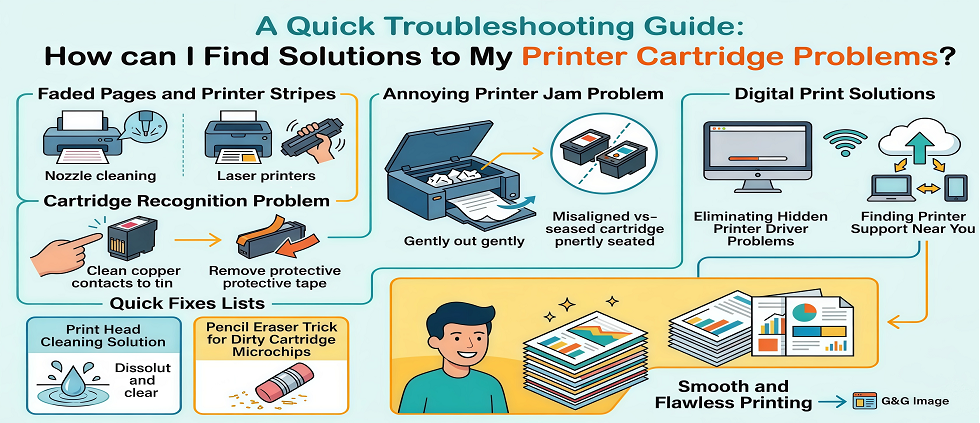
Tackling the Cartridge Recognition Problem
You open a fresh replacement, click it into place, close the door, and look at your screen—only to see a message reading: "No Cartridge Detected" or "Incompatible Ink." It feels like a total roadblock, but this specific print cartridge problem is rarely a sign of a defective product.
This usually happens for two very simple reasons: either a microscopic layer of finger oil or static dust is blocking the metal contacts, or a piece of bright protective plastic tape was accidentally left on the cartridge during installation.
Learn how to fix at:
How to Deal with a Misinstalled Cartridge in Your Printer
Fixing the Annoying Printer Jam Problem
When paper gets stuck, crumpled, or torn inside the feeding rollers, your printer will instantly lock down to protect its internal gears.
While it is easy to blame the paper itself, a poorly seated or incorrectly installed cartridge can actually be the hidden trigger. If an ink or toner cartridge isn't pushed in until it firmly clicks, it can sit at a slight angle. This minor misalignment can physically obstruct the narrow path the paper travels through, causing pages to catch, bunch up, and jam. Ensuring your cartridge is perfectly aligned is your first line of defense against these annoying physical paper traps.
Learn how to fix at:
How to Choose the Right Paper for Printing at Home
Can My Printer Handle Thick Cardstock and Specialty Papers Without Jamming?
Quick Fixes Lists
Reviving Ink Flow with a Print Head Cleaning Solution
If your inkjet printer is leaving ugly white lines across your documents, the built-in nozzles are likely dried out or blocked. Thankfully, you can dissolve these stubborn ink clogs easily.
Here is your straightforward, step-by-step guide on how to fix printer problems without creating a giant mess on your desk:
How to Unclog Inkjet Print Heads After Long Inactivity
The Pencil Eraser Trick for Dirty Cartridge Microchips
The insider fix for this print cartridge problem is sitting right in your desk drawer: a standard pencil eraser.
Take a clean, dry pencil eraser and gently rub it across the gold metal contacts a few times. The rubber gently scrubs away stubborn static buildup, fingerprint grease, and oxidation without scratching the metal.
Explore more to follow the steps: Laser Printer Troubleshooting: Solving Toner Recognition Issues
Digital Print Solutions: Solving Printer Connection Problems
Sometimes, you can have a perfectly clean printhead and a brand-new, flawlessly seated cartridge, but your printer still refuses to cooperate. It just sits there silently while your computer insists the printer is "Offline."
Look at how to untangle these common software and printer connection problems so your tech starts talking to each other again:
Is It Worth Repairing a Home Printer?
Eliminating Hidden Printer Driver Problems
To keep your system running smoothly, baseline driver directly from their official support website. Keeping your computer's drivers up to date ensures it can always send clean, uncorrupted print files to your hardware, protecting your workflow from forced software locks.
The Science Behind Printer Firmware Update:Things You Need to Know
How to Find Printer Support Near You?
Resolving Laser Printer Printing Problems and Settled Toner
Explore more to follow the steps:
What To Do When Your Toner Suddenly Runs Out?
Laser Printer Troubleshooting: Solving Toner Recognition Issues
Printers and software are constantly evolving, and new questions are bound to pop up as you take on different projects. Whenever you find yourself facing an unfamiliar error code or simply want to learn how to optimize your cartridge yield, you can find your specific solutions at g&g Image blog stop.
By mastering basic troubleshooting steps, you reclaim full control over your workstation. With the right approach, a clear understanding of your hardware, and a few clever tricks up your sleeve, smooth and flawless printing is always well within your reach.