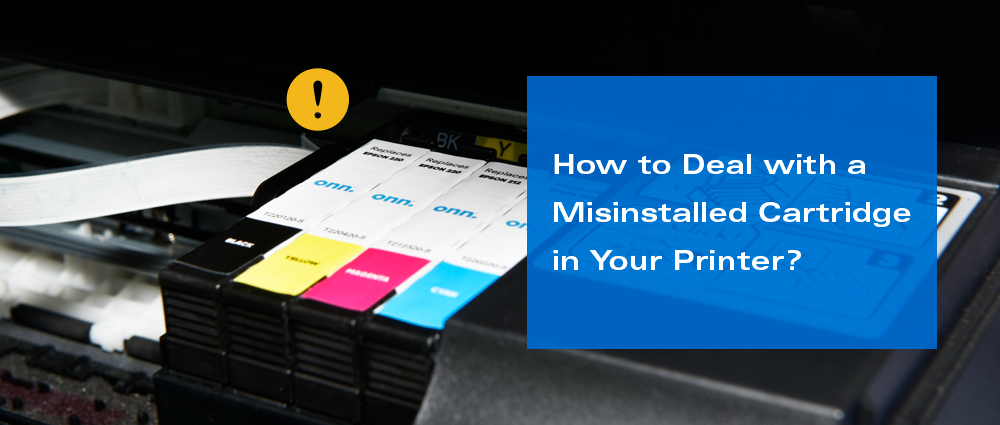
How to Deal with a Misinstalled Cartridge in Your Printer?
We’ve all been there: you’re trying to replace an ink or toner cartridge, but your printer just won’t recognize it. Maybe it’s blinking an error light, refusing to print, or claiming the cartridge is "missing." A misinstalled cartridge can grind your work to a halt—but don’t panic. Let’s break down why this happens and how to fix it fast.
Why Can't Your Printer Recognize Cartridges?
When your printer acts like your new cartridge is invisible, the problem usually boils down to a few common issues.
First, the cartridge might not be fully snapped into place. If it doesn’t click, the printer’s sensors can’t detect it. Second, dirty contacts are a classic culprit. Dust, oil from your fingers, or residue can block the electrical connection between the cartridge’s copper chips and the printer. Finally, outdated firmware or drivers might misread the cartridge, or the printer’s internal sensors could be blocked by toner dust.
How to Fix When You Misinstall Your Cartridge
Got a stubborn cartridge that won’t cooperate? Try these steps:
Reinstall with care: Turn off the printer, open the access door, and pull the cartridge out. Check for bent plastic tabs or packaging tape you might have missed (yes, that blue tape is sneaky!). Align the cartridge perfectly with its slot—color icons should match the carriage labels—and push down firmly until you hear a click. That sound means it’s locked in.
Clean the contacts: Remove the cartridge again and gently wipe its copper-colored chips with a dry, lint-free cloth or soft eraser. Never use alcohol or water—they can damage the circuitry. Also, swipe the printer’s internal contacts where the cartridge sits.
Reset and update: Restart your printer (unplug for 30 seconds) to clear any software glitches. If it still doesn’t work, update your printer’s firmware or drivers via the manufacturer’s website.
How to Install Cartridges Correctly
Avoid future headaches by nailing the installation process every time:
Prep: Turn on the printer and open the cover. Wait for the carriage (the holder that moves) to slide to the center.
Remove the old cartridge: Press the release tab and lift it straight out. If it’s a toner cartridge, hold it by the middle handle to avoid touching the drum (fingerprints cause print defects!).
Prep the new cartridge: Unbox it and remove all tape, stickers, or orange pull-tabs. Never touch the nozzles or chips. For toner, gently shake it to distribute the powder.
Install: Match the cartridge color to the slot label. Slide it in at a slight angle and press down until it clicks. Close the cover firmly.
Test: Print a test page via your printer’s settings menu to confirm it works.
Pro tip: Always use gloves when handling cartridges to keep oils off the chips. And if you’re using recycled cartridges, check for cartridge support/recycling programs to trade empties for cash.
Fixing a misinstalled cartridge is often quick—reinstall, clean, reset. But doing it right the first time saves you stress and wasted ink. If your printer stays stubborn, reach out to ink/toner cartridge support services or swap in a trusted gg ink/toner cartridge. Happy printing, and don’t forget to recycle those empties!