Imagine this: you are running late for an important meeting, and you desperately need a physical copy of your agenda. You hit "Print," expecting an instant page. Instead, your printer begins a sound of clicks, whirs, and hums while you stand there watching the clock tick.
If you are tired of staring at a blinking light waiting for your machine to start printing, you aren't alone.
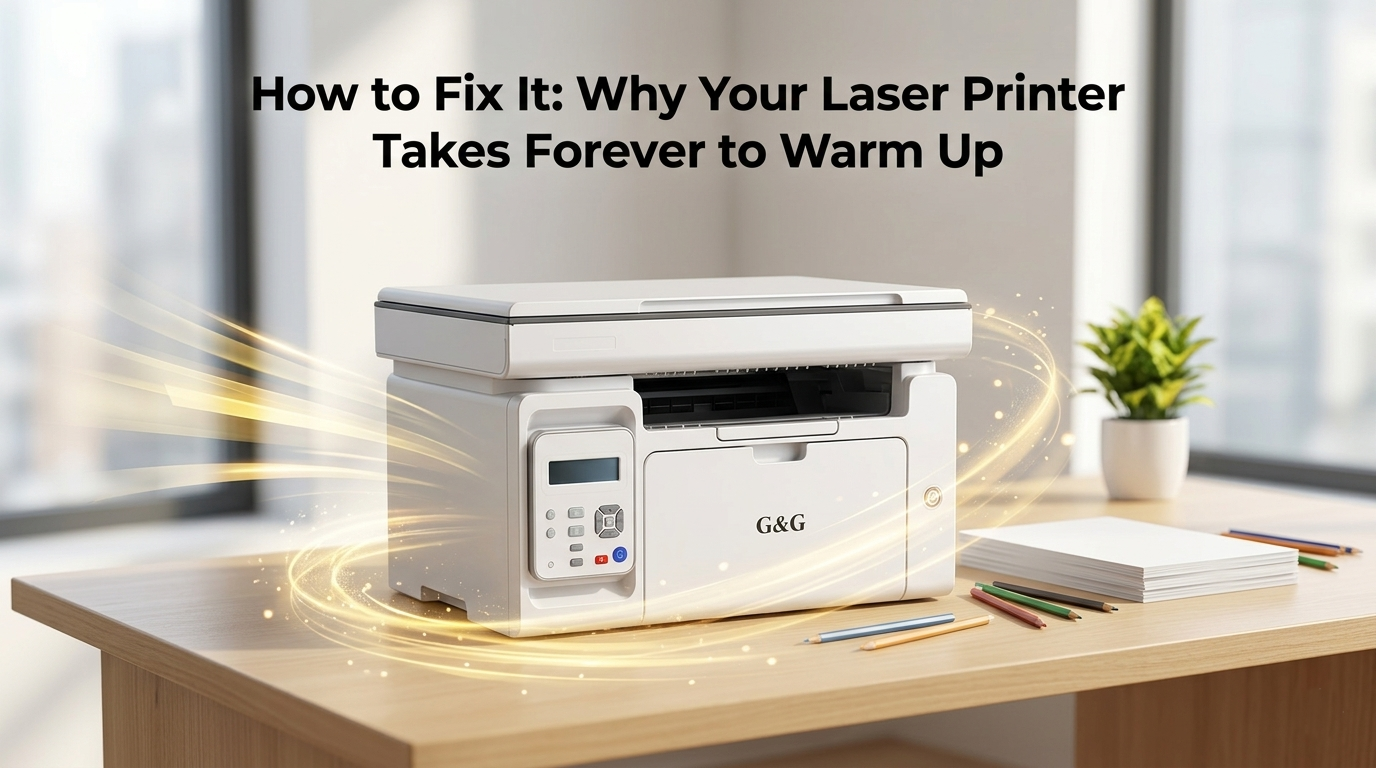
Here is the quick truth: that printer takes forever to print first page delay happens because a laser printer is essentially a high-tech oven. To bind ink to paper, its internal heating element must jump from room temperature to a scorching 200°C (392°F). At the same time, its internal computer is translating your digital file into a physical map of microscopic dots.
A laser printer warming up too long is a problem you can actually speed up. By tweaking a few simple power settings, choosing efficient print drivers, you can drastically cut down your print time and get back to your day.
Why Does Your Printer Take So Long to Warm Up?
When you send a document to your machine, it doesn’t just sit there idling. It immediately kicks off a high-speed mechanical prep routine.
The Fuser Assembly
Unlike an inkjet printer that sprays liquid ink onto paper, a laser printer uses a completely dry process. Your toner cartridge is filled with a microscopic, plastic-based powder. To make this powder stick to your document permanently, the printer must feed the paper through two heavy rollers known as the fuser assembly.
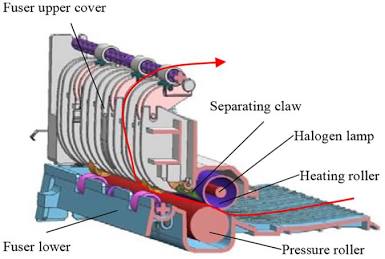
The internal fuser mechanism
As you can see in the diagram above, an internal heat source (often a powerful halogen lamp) sits inside a specialized heating roller. This roller has to heat up to an intense range of 180°C to 220°C (356°F to 428°F) before the first page can pass through. The pressure roller underneath tightly pinches the paper against the hot roller, literally melting the toner powder into the tiny pores of the paper fibers.
If your printer rushed this process and didn't wait for the fuser to reach its exact target temperature, the plastic powder wouldn't melt completely. You would end up with text that easily smudges, flakes off when you touch it, or creates massive ghosts and smears across your pages. This critical heating phase is the single largest reason for a long print time.
Internal Housekeeping: Calibrations and Voltage Checks
While the fuser is heating up, you will hear a series of rhythmic clicks, hums, and whirs. This is the printer performing its automated troubleshooting laser printer health check.
During this brief window, the machine is spinning its internal gears to ensure everything moves smoothly without binding. It feeds precise electrical voltages to the primary charge roller and the developer unit. This electrical conditioning creates a perfect static charge on the imaging drum, which acts like a magnetic canvas for the laser.
Furthermore, small sensors inside the machine check the alignment of the internal components to guarantee that your text lines up perfectly straight on the page, avoiding annoying color shifts or jagged margins.
When the Delay Isn't Mechanical
Sometimes, your printer is physically warm, ready to roll, and completely clear of errors—yet you still find your laser printer slow first page delay drags on. When this happens, the slowdown isn't a mechanical failure. Instead, it is a digital traffic jam.
Before a single gear can spin, your document has to travel from your computer, phone, or tablet and be completely translated into a language the printer can understand.
Heavy Files and Document Rasterization
When you click print on a complex PDF, a large spreadsheet with colorful charts, or a high-resolution image, your computer doesn't just send that file directly to the paper. It has to undergo a heavy mathematical process called rasterization.
Rasterization takes your fonts, vectors, and layout designs and converts them into a massive, microscopic map of individual dots (a bitmap) that the printer's internal brain can physically lay down with its laser beam.
Complex Graphics: If your document contains embedded photos or intricate transparency layers, the file size can swell from a few kilobytes to dozens of megabytes.
Memory Constraints: If your printer has a small internal memory (RAM), it can easily become overwhelmed trying to process all that data at once. It will sit there silent, "thinking" and processing, which dramatically inflates the total time for prints.
Network and Connection Lag
In a busy home office or a bustling small business, how your printer connects to your devices matters immensely.
If your printer is connected via a weak or crowded Wi-Fi network, the actual transfer of that rasterized data slows to a crawl. A weak wireless signal means data packets get lost in transit, forcing your computer to resend them over and over.
Similarly, if you are sharing an office printer and three other people send large print jobs at the exact same moment, your printer’s queue gets backlogged. The machine has to finish spooling and clearing out the previous jobs before it can even begin the physical warm-up sequence for yours.
How to Fix Printer Warm Up Delay
Now that we know why your machine is holding back, let’s talk about how to take control of your print time. By changing a few hidden settings and adjusting how you send your jobs, you can learn how to fix printer warm up delay.
Adjusting Power-Saving and Sleep Modes
To comply with global energy efficiency regulations, laser printers are designed to automatically drop into a deep "Sleep Mode" or "Eco Mode" after a few minutes of sitting idle. While this is great for your electricity bill, it cools the fuser all the way down to room temperature. When you finally hit print, you suffer a massive printer takes forever to print first page delay.
1.Access the Printer Settings:
Via computer or control panel
Open your computer's Settings, go to Devices and Printers (or Printers & Scanners), click on your printer model, and select Printer Properties or Preferences. Alternatively, you can navigate directly to the Setup/System Settings menu on your printer’s physical LCD screen.
2.Locate the Power/Eco Menu:
Look for energy saving options
Look for a tab or menu labeled Power Management, Eco Settings, Sleep Timer, or Timeout Settings.
3.Extend the Sleep Delay:
Keep the fuser warm longer
Change the idle time from the default (usually a short 1 to 5 minutes) to a longer window like 30 minutes, 1 hour, or even Never/Disable if your office is constantly busy.
4.Save and Apply:
Instantly cuts wait times
Click Apply and OK. Now, your printer will stay in a warm, ready-to-rock state for much longer during the day, giving you instant on time printing when you need it most.
Smart Batch Printing Practices
Every single time your printer cools down, it has to repeat its entire clicking, whirring, and warming routine. If you print one page, wait twenty minutes, and print another page, you are forcing your printer to work twice as hard and wasting precious time.
The solution is simple: batch your print jobs. Try to save up your invoices, school essays, or shipping labels throughout the morning and send them to the printer all at once. Because the fuser only needs to heat up once for the first page, pages two through twenty will slide out at full factory speed. This single habit is one of the easiest ways to bypass a laser printer warming up too long.
While a brief mechanical pause is functionally necessary for a laser printer to melt toner and calibrate its voltages, an endless printer takes forever to print first page delay is something you can absolutely change.
By taking a few minutes to dive into your machine's power settings, extending your sleep timers during busy hours, and practicing smart batch printing, you can dramatically cut down your time for prints.
If your current machine continues to cause a frustrating laser printer slow first page bottleneck no matter what tweaks you try, the problem might simply be outdated, sluggish hardware. Investing in a highly efficient solution like a G&G mono laser printer --it can print out first page less than 7 seconds, completely eliminating the waiting time. With ceramic instant-on heating technology, you can experience true, lightning-fast on time printing without sacrificing an ounce of text clarity.