When your printer drops offline, you don't need a technician—you just need a quick ip address search. Finding those numbers is straightforward. Choose the easiest method below for your setup to discover exactly how to find your printer ip address in just a few clicks.
Method 1: How to Check Your Printer's IP Address on the Screen
If your multifunctional printer has a built-in LCD control panel, this is the fastest way to get an answer. It tells you exactly how to check printer ip address settings without even touching a computer.
1. Go to your printer's control panel and press the Home or Setup button.
2. Look for a menu named Network Settings, Wi-Fi Settings, or TCP/IP.
3. Select View Network Status or Network Summary.
Your printer ip address will be displayed on the screen as a series of numbers separated by periods (for example: 192.168.1.15).
Method 2: How to Print the IP Address of Your Printer
If your printer doesn't have a screen, or if you prefer a physical copy, you can let the device do the talking.
What to look for on the page: Look under the "TCP/IP" or "IPv4" section. You will find a line that says IP Address or IP Address for printer.
Method 3:How to View Your Printer's IP Address via Computer Settings
If you are working remotely from home, managing a hybrid schedule, or trying to connect to a printer across the house while tucked away in your workspace check the methods below:
Where to find ip address if you are not physically standing next to the printer?
On Windows:
1. Open Settings > Bluetooth & Devices > Printers & Scanners.
2. Click on your specific ip address printer.
3. Select Printer Properties.
4. Click on the Ports tab and look for the checked box. The column next to it will show the current printer ip.
Alternatively, click the General tab; the location field often displays the network address.
On macOS:
1. Open System Settings > Printers & Scanners.
2. Click on your printer from the list.
3. Look at the Location or Kind section. The numbers listed there show you how to view ip address details instantly.
Method 4:How to Find My Printer's IP Address on a Smartphone
For mobile-first offices and homes, you can track down your ip address on printer networks using your phone.
Open your phone's internet browser while connected to the same Wi-Fi.
If you know your router's login, you can view the "Connected Devices" map to instantly pinpoint the exact printer ip assigned to your device.
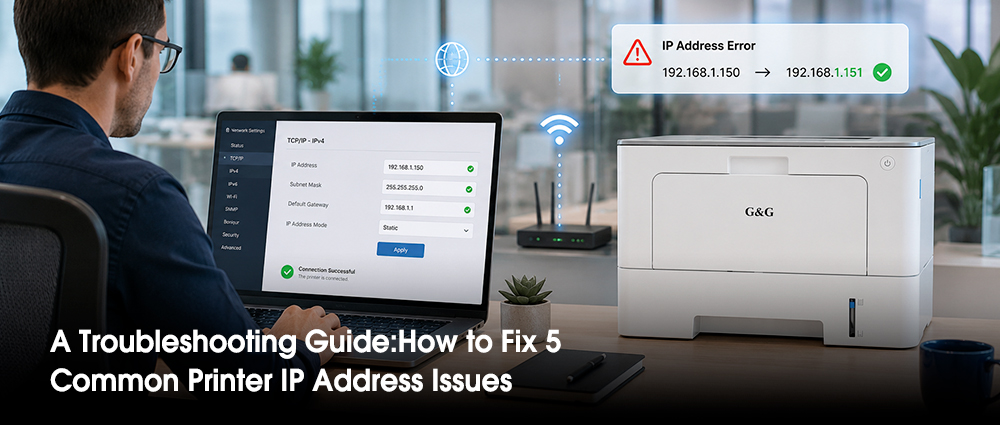
The Troubleshooting Guide: 5 Common Printer IP Address Issues and How to Fix Them
Here are the five most common network roadblocks and exactly how to clear them.
Issue 1: The IP Changes
The Problem: Your printer was working perfectly yesterday, but today your computer says it is offline. This happens because your internet router automatically gave the printer a brand-new IP address when it woke up from sleep mode, leaving your computer looking for it at the old digital address.
The Quick Fix: Find the new IP address using the steps in Method 1-4. On your Windows PC, go to Printers & Scanners > Printer Properties > Ports > Configure Port, and update the printer's location numbers to match the new address.
Issue 2: IP Address Conflicts
The Problem: Two devices on your network are trying to use the exact same number string. If your router accidentally gives your printer the same IP address as a smartphone or a laptop, both devices will drop offline or refuse to communicate.
The Quick Fix: Turn off your printer completely. Restart your internet router and wait two minutes for it to boot back up. Turn your printer back on. This forces the router to perform a fresh network scan and hand out a clean, unconflicted ip address to your printer.
Issue 3: Subnet Mismatch
The Problem: You try to find a printer by ip address, but your computer insists it doesn't exist. This usually happens in homes and small businesses that use dual-band Wi-Fi routers (broadcasting both 2.4GHz and 5GHz networks). If your printer is on the 2.4GHz band and your laptop is on the 5GHz band, they might be isolated from each other.
The Quick Fix: Check the Wi-Fi network names on both devices. Make sure your computer and your printer are connected to the exact same Wi-Fi network name (SSID). If your router uses separate names for the bands (like MyHomeWiFi_2.4 and MyHomeWiFi_5), move them both to the same one.
Issue 4: Mesh Network Isolation
The Problem: You have a mesh Wi-Fi system to cover your whole house or office, but your printer keeps dropping connection when you move your laptop to a different room.
The Quick Fix: Many smart printers struggle when a mesh network forces them to jump between different signal nodes. Log into your router's mobile app, locate your printer in the device list, and turn on the "Fix IP" or "Reserve IP" feature. This binds the printer safely to the closest network node.
Issue 5: Corrupted Printer Driver Ports
The Problem: Your network is fine, your printer prints a physical network sheet perfectly, but your computer still won't send documents. The software port inside your computer's operating system has become corrupted.
The Quick Fix:
1. Go to Printers & Scanners on your PC and select your machine.
2. Click Remove Device to delete the glitched setup.
3. Click Add Device.
If it doesn't find it automatically, click "The printer that I want isn't listed" and choose "Add a printer using an IP address or host name."
Type in the fresh IP address you discovered earlier to create a clean, working digital pathway.
Conclusion
Most printer IP address and connection problems are completely straightforward to fix yourself. Start with the basics: verify your Wi-Fi network name, restart your devices in the correct order, and clear out any stuck documents in your print queue. Use your physical network configuration sheet as your diagnostic anchor to see exactly what is happening behind the scenes. Work through the troubleshooting steps step-by-step, and you will resolve the vast majority of wireless errors without ever needing to call for technical support.
When you need a highly reliable, stress-free printing solution that respects your budget, explore G&G’s current printer lineup. Built specifically for modern home offices, remote workers, and growing small businesses, a g&g laser printer offers rock-solid network connectivity, remarkably easy setup, and long-term stability.