Do you have a trusty, older printer that has been sitting in your home or office for years? It still handles school essays, family tax forms, or daily office paperwork like a champ. But there is a hidden catch: unlike your smartphone or modern laptop, that older printer cannot update itself. In the IT world, we call this setup legacy printing. Because these older printer belong to a legacy print group , keeping them secure and running smoothly usually means a lot of manual work.
If you are managing a few of these machines for your family, students, or a busy administrative office, the last thing you want to do is spend your weekend walking from computer to computer with a USB thumb drive just to change a few settings.
The Quick Answer for Busy Users
So, how can you safely push a firmware update to a fleet of legacy, non-network-managed printers without manual, machine-by-machine intervention?
The short answer is: You use your central computer or a shared network server to act as the "brain" the printer lacks.
Even if your old hardware cannot talk to the internet on its own, you can group your devices together and use free network utility tools or a simple script to push out the update files all at once. By setting up a single machine to handle the heavy lifting, you can trick your old hardware into receiving printful updates—meaning the new code is delivered quietly in the background while your users keep working.
Why Your Trusty Old Printer Needs an Update Now
It is easy to adopt an "if it isn't broken, don't fix it" attitude with old tech. If it still puts ink on paper, why bother messing with it? The truth is, learning how to update printer firmware is one of the best ways to protect your home or office.
Every time a manufacturer releases an update printer firmware file, they are usually fixing two major things:
By taking control of these updates now, you aren't just maintaining old plastic and gears—you are protecting your private data and extending the life of an asset you already own.
How to Update Printer Driver Packages Safely
When your computer refuses to print, the first thing you should look at is the driver. Learning how to update printer driver files is usually the easiest way to fix "communication" problems. The driver is a piece of software installed on your computer (not the printer) that translates your document into a language the printer understands.
For those managing legacy printing at home or in a small office, here is the safest way to handle it:
The "Clean" Install: Sometimes, to update printer driver settings effectively, it is best to uninstall the old version first, restart your computer, and then install the new one. This prevents old errors from "hitching a ride" onto the new software.
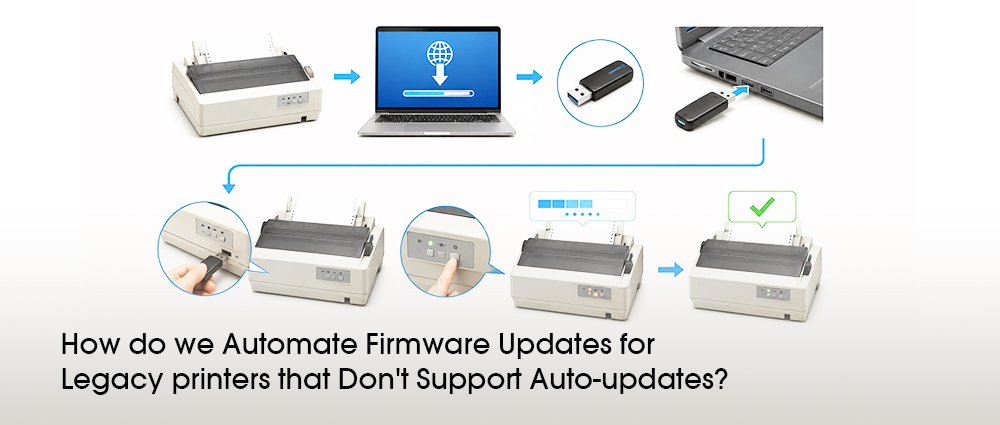
When you update firmware on printer hardware, you are actually rewriting the internal code that lives on the printer’s memory chip. This is a bit more serious than a driver update because the firmware controls physical things, like how hot the fuser gets or how precisely the paper moves.
In the world of legacy screen printing and high-end administrative work, firmware updates are what allow your printer to handle modern, complex image files without crashing. While it might seem intimidating to update printer firmware on a machine that’s 5 or 10 years old, doing so often unlocks better ink/toner management. This is a huge win for those of us who prefer refilling empty cartridges, as updated firmware can sometimes help the printer read cartridge levels more accurately and reduce waste.
By keeping both your software (drivers) and your hardware (firmware) updated, you ensure that your trusty old machine remains a reliable partner for years to move.
How to Safely Automate Updates for Your Legacy Print Group
If you are an administration officer or the designated "tech support" person for your family or office, you don’t have time to manually update every single machine. We want to take all those old legacy prints devices and handle them as one efficient team.
Creating a Managed Legacy Print Group
The secret to saving time is grouping your computers and printers together logically. Even if you are dealing with a mismatched collection of older machines, you can organize them into a single legacy print group on your main computer or office network.
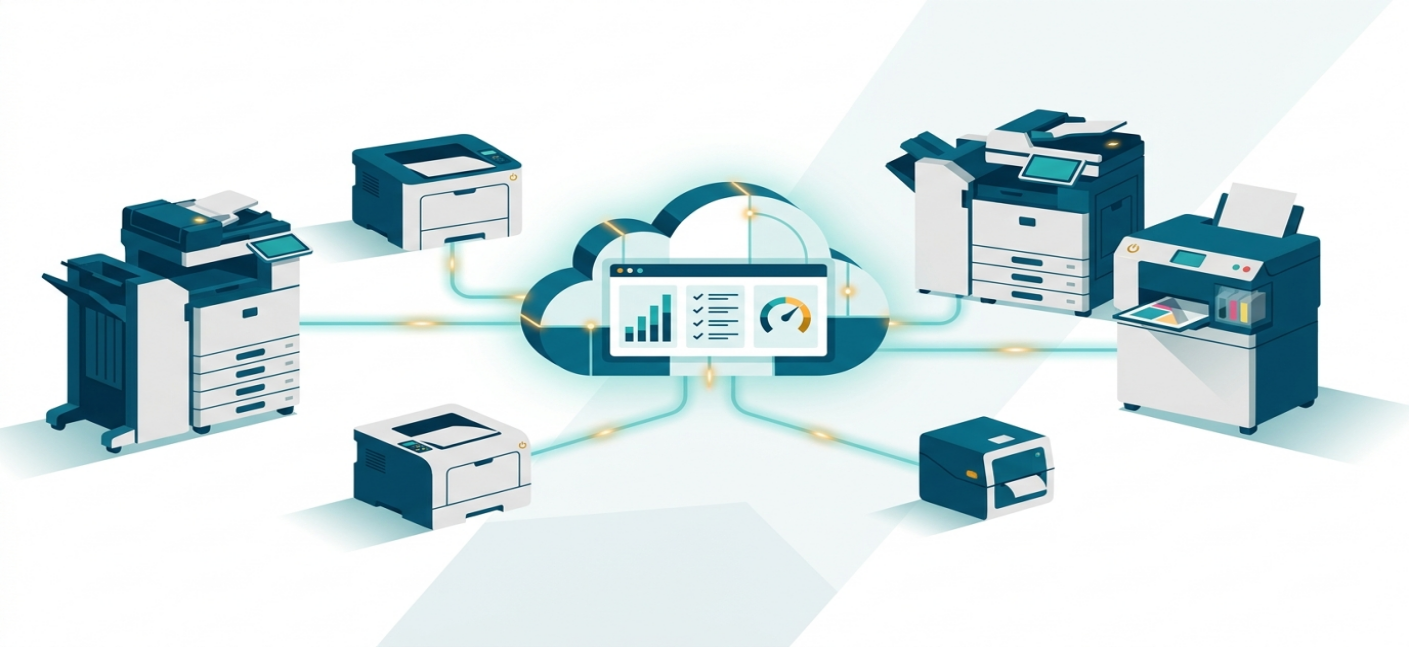
By using the built-in printer management settings on a Windows or Mac network, you can see all your connected devices in one central dashboard. Instead of treating each old machine like an isolated island, this grouping allows you to send out a single command—like a massive batch update printer firmware order—that will queue up and deploy across the group without you having to touch a single printer button.
Centralized Print Management and Updates
To get automatic features out of old hardware, we need a little help from centralized print management software. There are many free or low-cost utility tools provided by manufacturers, as well as universal print management apps, that can monitor older devices.
When you use these platforms, you can schedule updates to happen at specific times—like 2:00 AM when the office is empty or when students are asleep. The software downloads the necessary files and pushes out updates directly to the printers via the local network or connected USB hubs. The printer receives the file, processes it, and reboots completely on its own, mimicking the smooth, hands-free experience of a brand-new smart printer.
Cartridge Friendliness and Long-Term Value
While hacking together a system to automate updates for old devices is a great way to save money, there comes a time when the manual troubleshooting, outdated security protocols, and constant scripting just take up too much of your valuable time. If you are tired of playing tech support for a complex legacy printing setup, it might be time to look at a simpler, modern alternative that handles the hard work for you.
At G&G, we always stand by the user's side. We know that the biggest concern for families, students, and office managers when buying a new printer is the ongoing cost of supplies.
G&G Image does things differently. Our laser hardware is built to offer incredible long-term value, operating with high-yield, eco-friendly toner cartridges that keep your printing costs incredibly low. For users who prefer a budget-friendly and sustainable printing lifestyle—including those who rely on high-quality cartridge solutions to keep their workflows affordable—G&G provides a reliable partnership.
By shifting your approach from individual troubleshooting to a centralized, automated system, you can keep your legacy printing setup secure, stable, and highly productive for years to come.