If you’ve ever designed a beautiful, bright flyer on your computer only to have it come out of the printer looking dark, dull, or just "off," you aren’t alone. It’s one of the most common frustrations of color printing.
The quick answer: Your monitor isn't exactly lying to you, but it is playing by a different set of rules.
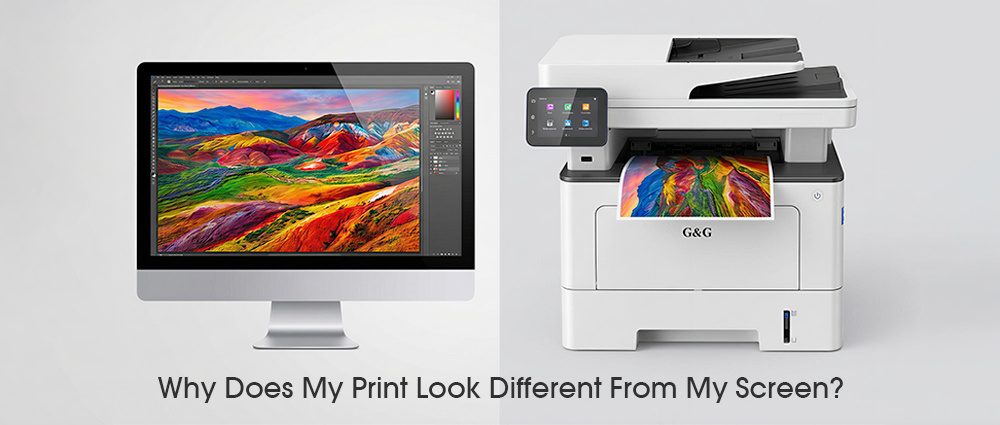
Your screen creates color using light, while your color laser printer creates color using physical bits of ink and toner. Because light and ink behave differently, what you see on a glowing screen will never be a 100% perfect match for what you see on a flat piece of paper. However, once you understand why this happens, you can bridge that gap and get perfect results.
Light vs. Pigment: CMYK vs. RGB Printing
To solve the question of the color shift, we have to look at how color is actually made. This is the comparison of cmyk and rgb printing.
RGB: The Language of Your Screen
Your computer monitor, phone, and TV are essentially boxes of light. They use a system called RGB (Red, Green, and Blue). By mixing these three colors of light at different intensities, your screen can create millions of vibrant, glowing colors. Because the screen is "adding" light together to make colors, the more color you add, the brighter it gets—until you get pure white.
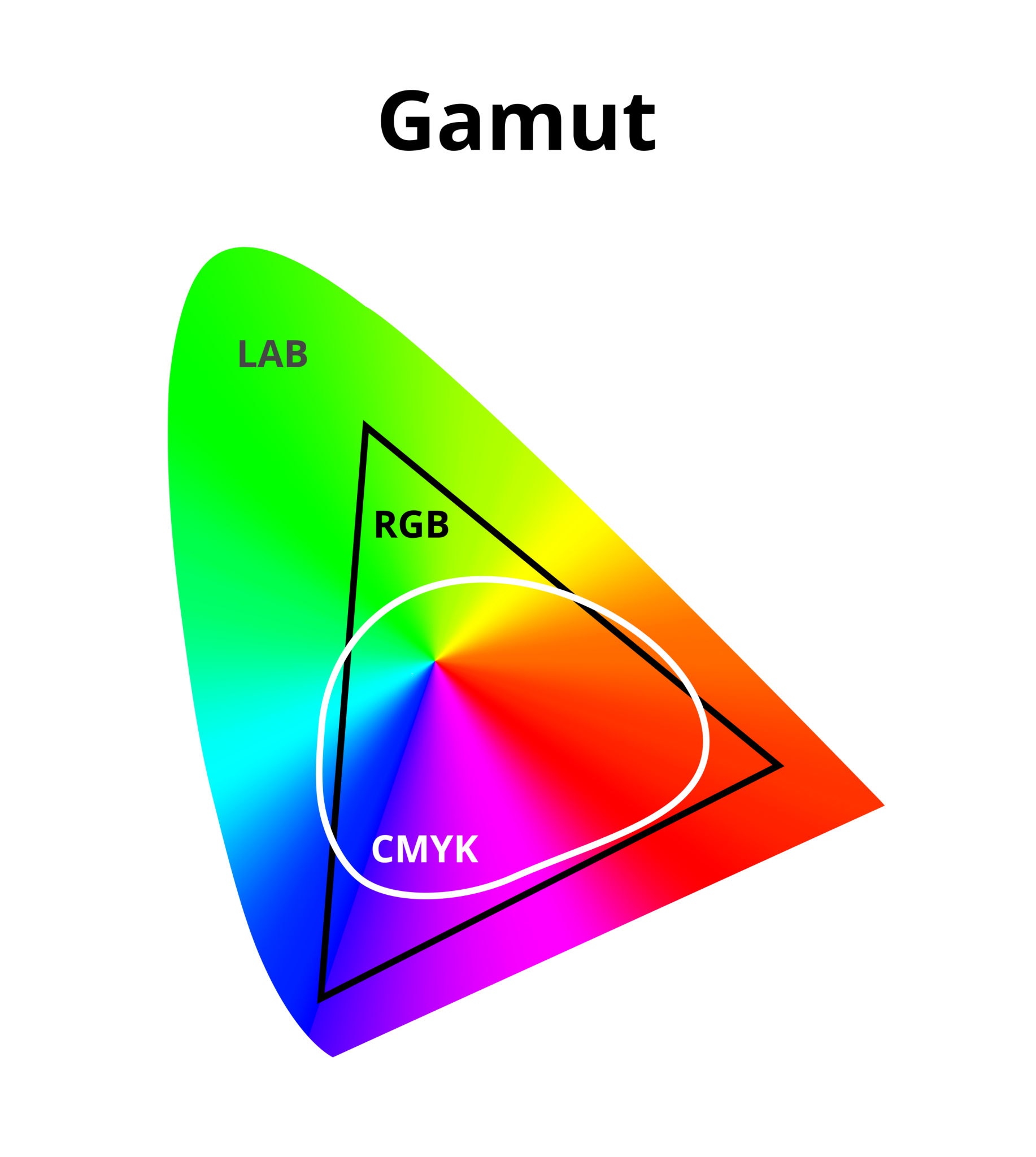
Vector illustration of CMKY, RGB and lab gamut – difference between CMKY and RGB color space in a lab or CIELAB color space isolated on white
CMYK: The Language of Your Printer
Printers don't have the luxury of glowing. Instead, they use a system called CMYK (Cyan, Magenta, Yellow, and Key/Black). Unlike your screen, a printer starts with a white piece of paper and "subtracts" brightness by adding layers of ink. The more ink you add, the darker the image gets.
When you print documents, your computer has to translate your bright RGB screen colors into CMYK ink colors. Some of those "electric" blues and neon greens you see on your monitor simply don't exist in the world of ink. This is why deciding whether to use rgb or cmyk for print files before you start is the secret key of professional designs.
The Brightness Misunderstanding: Is My Monitor Lying to me?
Have you ever noticed that your photos look amazing on your phone or laptop, but the physical version looks like it was taken in a cave? We call this the "prints of darkness".
The Backlight Illusion
Your monitor shines light directly into your eyes, which makes every color look punchy and every shadow look full of detail. Paper, however, doesn't glow; it only reflects the light in the room. When you look at a screen and print side-by-side, the screen will almost always win. This creates a false sense of security, making you think your file is brighter than it actually is.
Adjuting Your Expectations
Most of us have our monitor brightness turned up way too high (usually at 100%). If you want your color printing to match your screen, try turning your monitor brightness down to about 50% or 60%. It might look a bit dull at first, but it gives you a much more honest preview of how the ink will look on the page.
Paper: Texture and Absorption
When you print documents, the paper isn't just a background—it’s actually a key ingredient in the color recipe.
Cheap, porous copy paper drinks up the ink, which can make colors look muted or "fuzzy." On the other hand, high-quality coated paper keeps the ink on the surface, keeping the colors sharp and vibrant.
If you are using a G&G color laser printer, using the right paper setting in your printer menu is vital so the machine knows exactly how much heat and toner to apply.
Not all white paper is actually white. Some have a "cool" blue tint, while others have a "warm" yellow tint. Because printer ink is slightly transparent, the color of the paper shines through. If your paper is slightly yellow, your sky-blue print might end up looking a little green. Always check the "whiteness" rating on your paper pack to ensure you’re getting the cleanest canvas possible.
Why Sharp Screens Produce Blurry Prints
You have a photo that looks crisp and perfect on your high-resolution monitor, but when you print documents, it looks like a blocky, pixelated mess. Why?
The 72 vs. 300 PPI
Screens and printers measure detail differently. Most web images are 72 PPI (Pixels Per Inch)—which is plenty for a glowing screen. However, your color laser printer is much more demanding; it needs about 300 DPI (Dots Per Inch) to create a sharp image.
If you try to stretch a small picture to fit a large room, the gaps become obvious. To get a sharp print, make sure your file has enough dots of information from the start.
Investing in a workgroup laser printer for office use is the best way to stop "printer traffic jams" for your team of 12. By choosing a machine built for high volume, you save time and frustration. Look for professional features like split drum and toner to keep your long-term costs low. Whether you pick a monochrome or color office laser printer, the right choice keeps your team moving.
How to Fix It Before You Click "Print"
Before you waste a single drop of ink, follow this checklist:
Check your Mode: Ensure your design software is set to CMYK rather than RGB before you start.
Dim the Lights: Lower your monitor brightness to 50% to see a more realistic version of your colors.
Proofing Before Print: Always print a small "test strip" on your chosen paper to check for color shift before printing 100 copies.
Use Quality Supplies: A color laser printer performs best with high-quality G&G toner. Refilling with cheap, generic powder can lead to inconsistent colors.
Resolution Check: Ensure your images are high-resolution (300 DPI) so they stay sharp on paper.
Once you understand that your monitor is a "light maker" and your printer is an "ink layerer," you can adjust your workflow to get amazing results.By choosing the right settings, calibrating your brightness, and trusting high-quality brand like G&G, you’ll save money on wasted paper and ink.