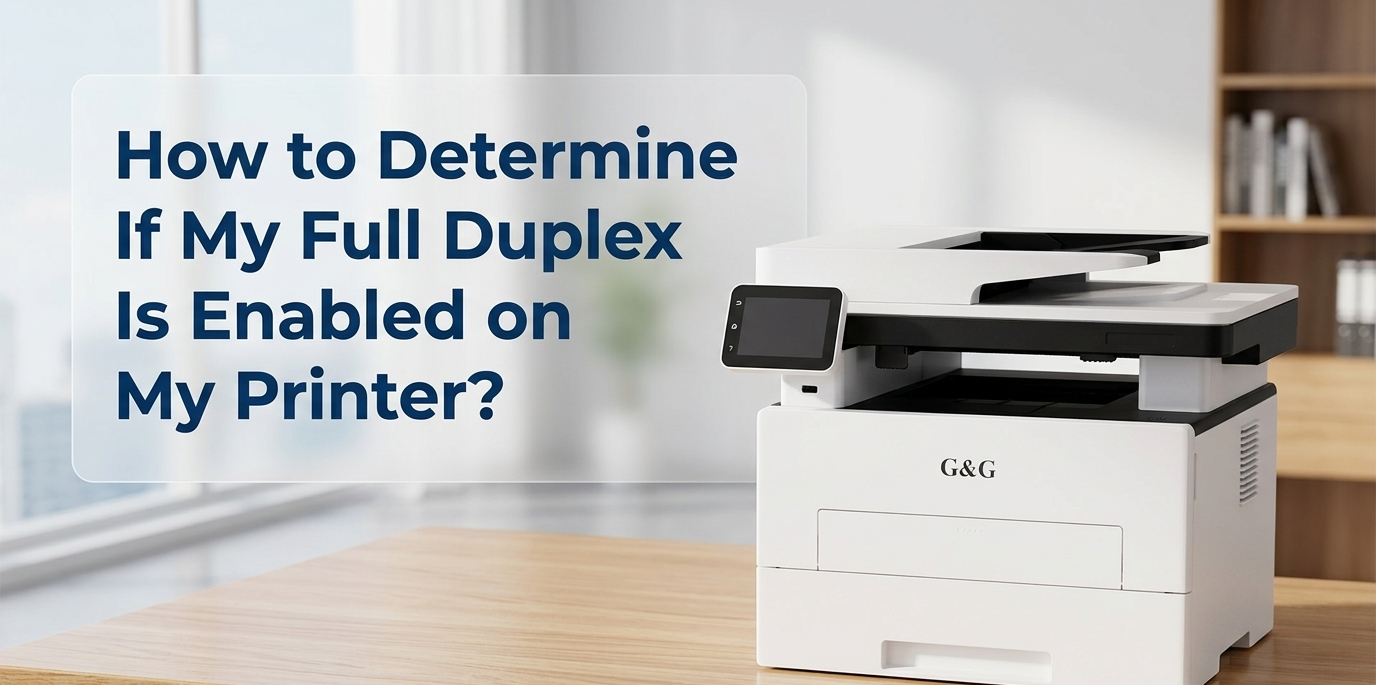
If you are staring at your printer wondering why it refuses to print on both sides of the paper automatically, you are not alone. Usually, the issue isn't that your printer can't do it—it's just that your computer doesn't know it can yet.
Let's get this sorted out right now so you can save time, paper, and money.
The 60-Second Fix
To check if your printer driver recognizes your hardware’s auto-duplex capabilities, you need to look at your computer's printer properties.
On Windows: Open your Control Panel, click Devices and Printers, right-click your printer, and select Printer Properties (not Preferences). Click on the Device Settings tab. Look for an option that says Duplex Unit or Two-Sided Printing Accessory and make sure it is switched to Installed or Enabled. Click Apply, and you are done!
On a Mac: Open a document, hit Cmd + P to bring up the print menu, look for a checkbox that says Two-Sided, and make sure it is checked. If it is greyed out, you simply need to go to your System Settings, find your printer under Printers & Scanners, click Options & Supplies, and turn on the duplex feature there.
What is Duplex Printing?
Simply put, it is the process of printing on both sides of a single sheet of paper. When we talk about what a duplex printer means, we are talking about a machine that has the smart internal parts to flip the paper over by itself without you having to touch it.
When you choose to print duplex, you instantly cut your paper consumption in half. This is incredibly helpful when you are working with high-volume tasks, like printing handbooks, presentations, or even managing your regular printing needs.
Meet the Printer Duplexer
Let’s start with a helpful printer duplexer definition. In a standard laser printer duplex setup, this specialized duplex printing unit takes a page after the first side is printed, pulls it back into a hidden internal tray, flips it over, and runs it through the machine a second time to print on the back.
When you own a duplex laser color printer, this entire process happens automatically in just a couple of seconds. It is a fantastic piece of engineering designed to save you time. However, if your computer doesn't know this extra assistant exists, it completely bypasses it.
The Communication Breakdown
This brings us to the core problem: the software misunderstanding. When you install a printer, your computer uses a program called a "driver" to talk to it. Sometimes, generic or basic drivers assume every printer can only print on one side at a time.
When this happens, your advanced printer gets forced into doing manual duplex printing. This means your computer stops the print job halfway through and pops up a message on your screen telling you to take the paper out, turn it around, and feed it back into the tray yourself.
The Good News: High-quality G&G multifunctional mono Laser Printers, come equipped with robust, smart hardware. If you are stuck doing manual flips on a machine like this, it is almost never a hardware failure. It simply means your computer driver is blind to the printer duplexer sitting right inside the machine.
By taking control of your software settings, you can bridge this communication gap and let your printer do the heavy lifting.
Step-by-Step Guide: How to Check and Turn On Auto-Duplexing On Windows
Windows is great at managing external devices, but it sometimes needs a gentle nudge to recognize when you have upgraded to a machine with a built-in printer duplexer. If your computer treats your high-performance printer like a basic, single-sided model, these quick steps will bridge the gap.
Follow this exact sequence to tell your Windows driver that your printer is ready to rock.
The Fix Method
Open Devices and Printers:
Takes about 1 minute
Press the Windows Key, type Control Panel, and hit enter. Once inside, click on View devices and printers under the Hardware and Sound category. Locate your specific printer from the list.
Access Printer Properties:
Key step
Right-click your printer's icon. A drop-down menu will appear. Make sure to click Printer Properties (usually located in the middle of the list). Do not click "Printing Preferences," as that menu won't let you alter the hardware settings.
Activate the Duplex Unit Hardware:
Click on the Device Settings tab at the top right of the properties window. Scroll down through the list of options until you see Duplex Unit or Two-Sided Printing Accessory. If it says "Not Installed," click on it, change the dropdown menu to Installed, and click Apply at the bottom.
Set Your Default Preferences:
Save your settings for good
Now that Windows knows the hardware exists, go to the General tab in that same window and click Preferences at the bottom. Look for Duplex Printing or Print on Both Sides and switch it to Flip on Long Edge. Click OK to lock it in.
In conclusion, moving from a casual user to a power user is about choosing reliability over "cheap" fixes. Whether you are a lawyer, accountant, or admin, G&G Jumbo is more than a piece of plastic and powder—it is your heavy duty printer's silent, hardworking partner.
By investing in a heavy duty printer and staying proactive about your maintenance, you ensure that your office never skips a beat.
What a duplex printer means for your daily life is simple: less wasted time, significantly lower paper costs, and a highly organized, professional output for every single project you tackle. As we look at modern workspace trends in 2026, efficiency and sustainability are more important than ever.
Combining the automatic paper-saving power of duplex printing with a proactive approach to your supplies is the ultimate formula for cost-effective printing. You protect your budget, optimize your workflow, and reduce environmental waste all at the same time.