To truly master your document printing costs, you need a two-prong strategy.You don't have to stop printing to save money; you just have to print smarter.
1. Optimize your printer settings for "Draft" mode during your initial printer set up.
2. Swap standard-size tanks for a worth-trusty compatible XL ink cartridge.
Most people think the best way to save ink is to simply print less. But actually, inactivity is your wallet’s biggest enemy. When a printer sits idle for too long, it performs aggressive "self-cleaning" cycles that dump your toner or ink directly into a waste pad just to keep the nozzles clear.
Can Draft Mode and Eco-Mode Really Save Money?
When you dive into your printer settings, the "Draft" or "Eco-mode" option feels like a "save money" button. But let’s look at what is actually happening under the hood.
In draft mode, your printer reduces the DPI (dots per inch), essentially spacing out the ink droplets. While this is great for a quick toner save, there is a hidden trap most experts ignore: the "Re-print Tax."
Many users set up printer defaults to Draft mode, only to find that a barcode, a fine-print contract, or a detailed chart is too faint to read. What happens next? They print it again in "High Quality." By printing the same page twice, you’ve actually wasted more ink and paper than if you had just used standard settings from the start.
Here is the professional secret: the quality of your supplies dictates how low you can go. G&G toner cartridge uses high-density, precision-engineered powder, its "Eco-mode" often looks as crisp as a standard setting on a generic brand. If you are setting up printer preferences for document printing, using a G&G compatible XL ink cartridge allows you to stay in Draft mode longer because the ink is rich enough to remain legible even when the printer is "holding back." Don't just settle for faint lines—use premium-grade cartridges so your "budget" settings still look like "business" settings.
Printer Settings for Everyday Documents
Most experts suggest "Grayscale," but they miss the "Composite Black" trap. When you are setting up printer defaults, many printer secretly mix costly cyan, magenta, and yellow ink to make black text look deeper.To truly save ink and toner, you must dig into your advanced printer settings and select "Black Ink/Toner Only."
Additionally, consider your font choice during your initial printer set up. Switching from "Arial" to "Ecofont" or "Calibri" can reduce ink consumption by 20% because they use fewer pixels per character. When you combine these "hidden" software tweaks with a good-quality compatible cartridge, you aren’t just saving pennies—you’re extending your cartridge life by months while keeping your document printing looking professional.
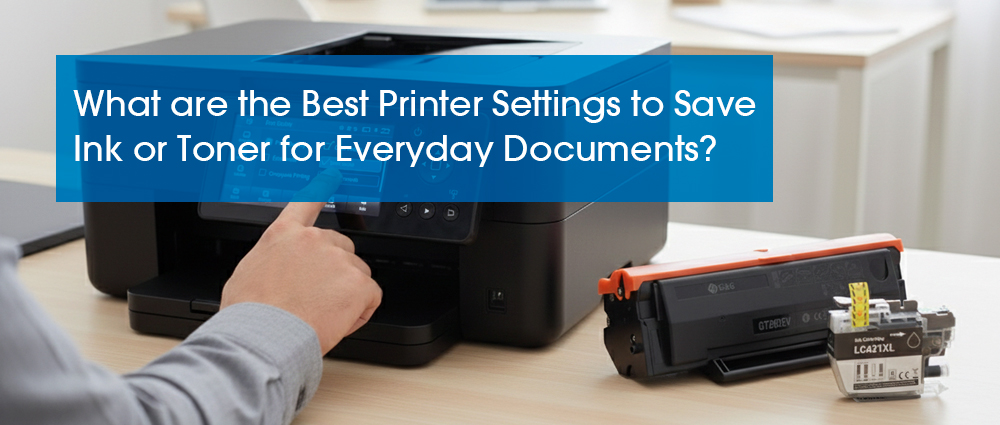
Printing Setting From Your Pocket
We use our phones for everything, but when you set up printer on iPhone, you are often stepping into a "hidden settings" trap. Mobile operating systems prioritize convenience over cost. When you hit print from an app, the phone often defaults to full color and high resolution, completely ignoring the printer settings you carefully chose on your desktop computer.
Here is a professional trick most experts overlook: The "Virtual Print Audit." Before finalizing any document printing from your mobile device, use the "Share" icon to "Save to Files" or "Print to PDF" first. This allows you to see if the mobile browser is accidentally adding five blank pages or heavy color advertisements to the end of your receipt or article.
Most people treat ink and toner like a "precious liquid or powder " they must hoard, but that mindset actually leads to dried-out nozzles and wasted money. The real secret to a long-term toner save strategy is shifting your focus from the "sticker price" of the box to the "cost per page."
By refining your printer settings just once, you stop worrying about every single page. Whether you are finalizing a printer set up on your laptop or a quick set up printer on iPhone, consistency is your best friend. When you combine smart setting up printer habits with a reliable G&G cartridge, you aren’t just saving pennies—you’re investing in a smoother, more cost-effective home office.